TestFlight
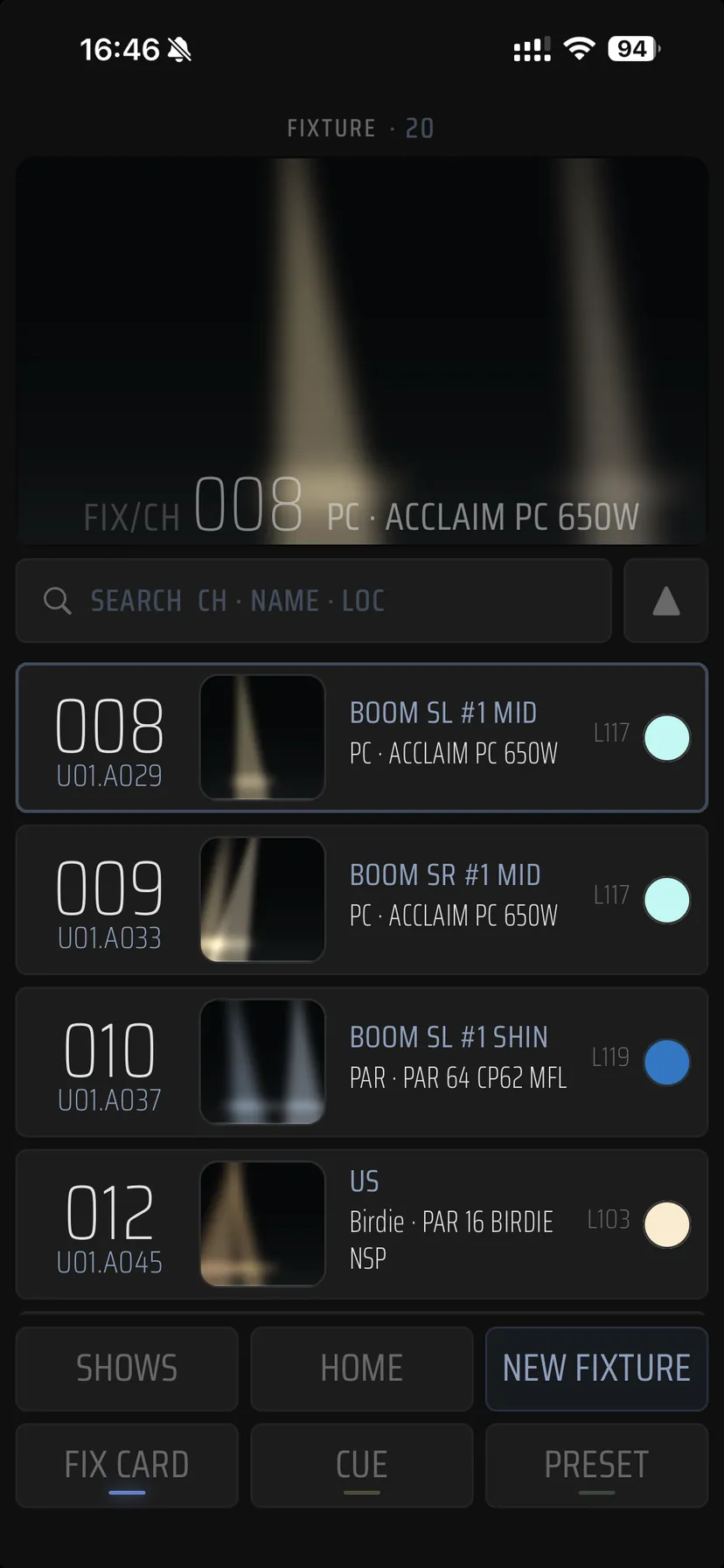
iPhone
- Install TestFlight from the App Store.
- Open the invitation — it opens inside TestFlight.
- Tap Install. New builds arrive on their own.
Public beta · version 0.3.0
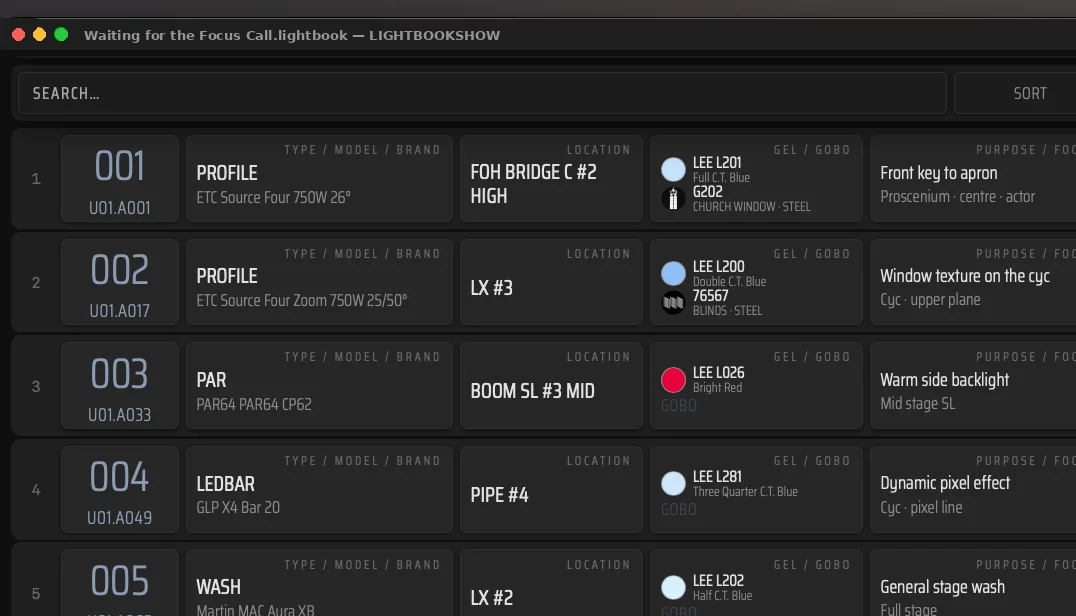
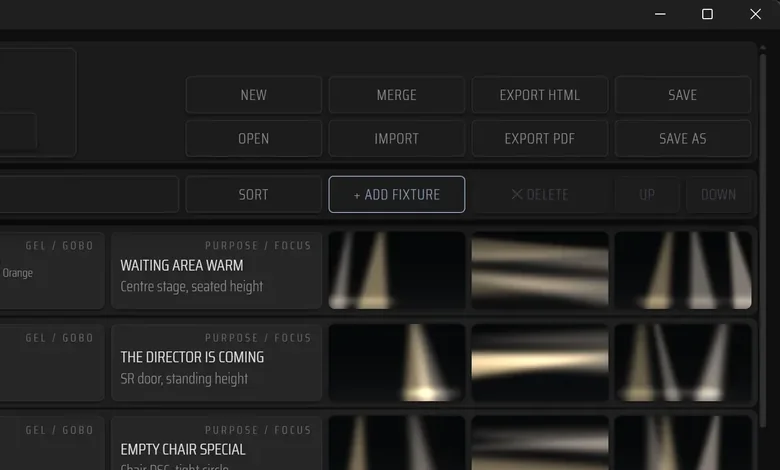
Test builds for iPhone, Mac and Windows are out. Open the demo production, then bring in your own show file — and tell us what gets in the way. That is what the builds are handed out for.
TestFlight
TestFlight
The Mac build is with Apple for review and will appear any day. If the invitation shows no builds yet, check back in a day or two.
Direct download
The test build is not signed with a publisher certificate, so Windows warns about it. Windows 10 or 11, 64-bit.
638c498ffebc9435eb7e12857a89eb0eafbe46e11f3bf291c623fffa0cab9cc2
It is already inside. Leaf through the fixtures, presets, cues and the poster, then start your own.
grandMA2 and MA3 exports — patch and sequence as XML — and ETC Eos as CSV.
The .lightbook file opens with a double click and can simply be sent by email.
Write to us and name the build mark — the short set of letters and digits under the title on the start screen. Without it we cannot tell which build you mean.
info@lightbookshow.com